> ## Documentation Index
> Fetch the complete documentation index at: https://docs.chargeblast.com/llms.txt
> Use this file to discover all available pages before exploring further.
# Slack Integration
> In order to set up the Slack Integration:
1. In the [integrations](https://app.chargeblast.io/integrations) page, select the Add to Slack button
 1. Type in the channel you want to send alerts to (without the #).
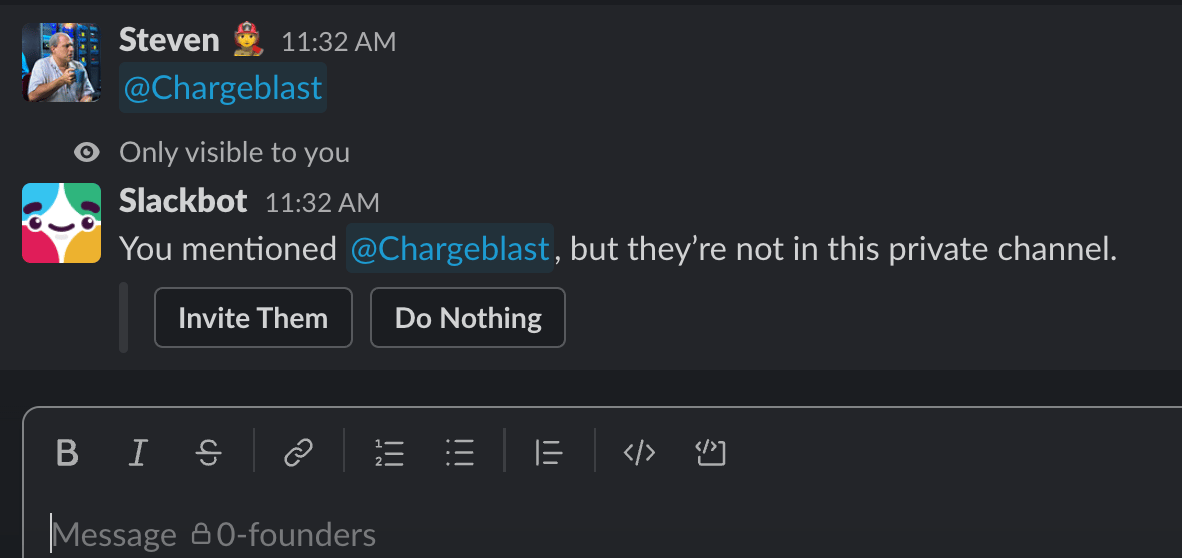
2. If the channel is a private channel, make sure to add the Chargeblast bot on Slack to the private channel. You can do this by just tagging @chargeblast in the private channel.
1. Type in the channel you want to send alerts to (without the #).
2. If the channel is a private channel, make sure to add the Chargeblast bot on Slack to the private channel. You can do this by just tagging @chargeblast in the private channel.
 1. Press the "test notification" button to ensure the integration is working.